
Create your test with Playwright Model Context Protocol (MCP)
Discover what MCP is and how to leverage Playwright’s MCP to automate your tests.

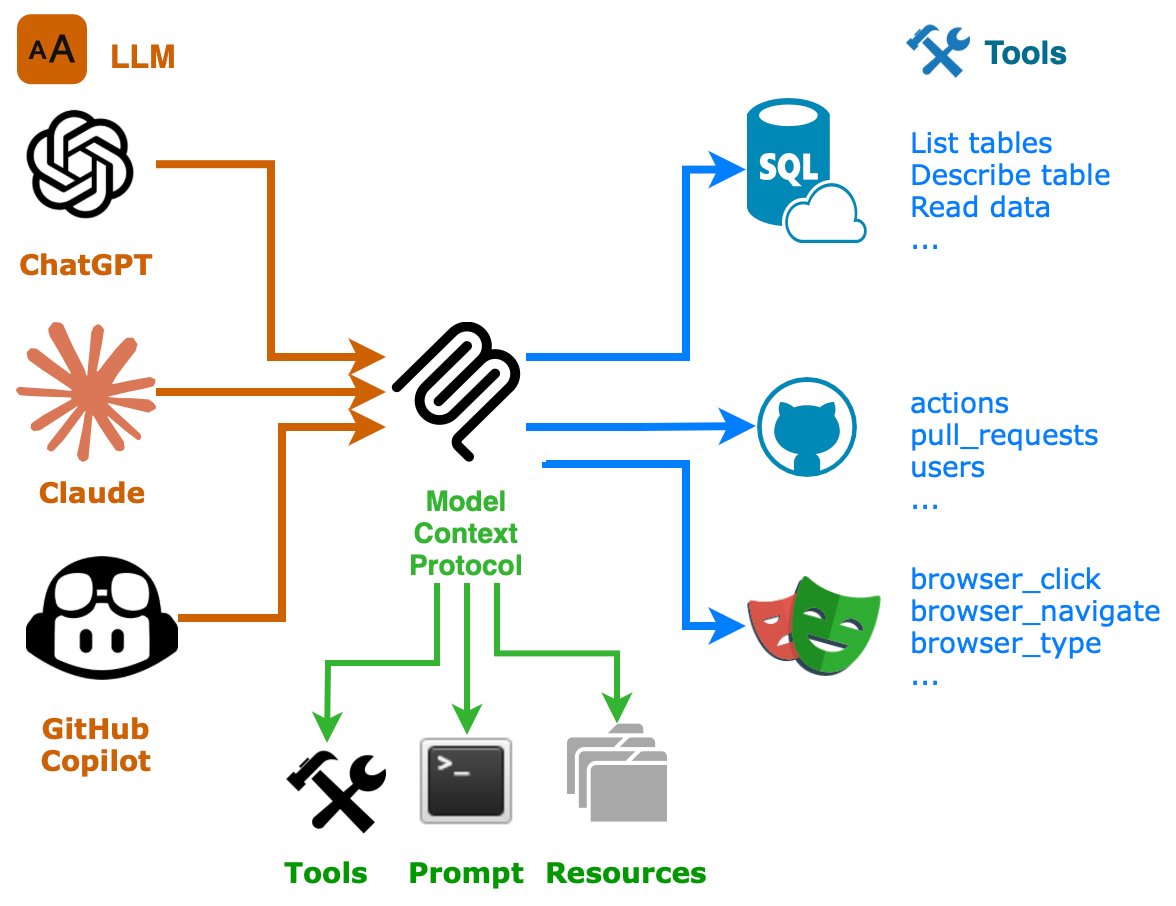
What is LLM?
The Large Language Model is an AI tool that has been trained to understand questions in human language and provide answers, code, explanations, or write articles, among other tasks. Some common LLMs are GitHub Copilot, Claude, Grok, and Ollama.
How can you add info to LLMS?
One of the disadvantages of LLMs is that they can’t access current information, such as knowing who the current president of the USA is. The LLM can’t connect to the internet to retrieve the answer beyond the information it was trained on.
You can provide additional information to the LLM models with:
Retrieval Augmented Generation (RAG): Introduced by Meta AI researchers to add documents to the LLM to get answers related to a topic, about that.
You can add links (documents) to the current documentation of your product.
RAG will index the documents
RAG will return the information to the LLM
LLM returns the result to the user
I created a RAG sample with Langchain to provide to the LLM, incorporating the concept of MCP and demonstrating how to test it with Deepeval.
Model Context Protocol (MCP): Developed by Anthropic, it’s an open source standard that allows LLMs to connect to external tools like SQL Database, GitHub, a Browser, Playwright, etc, to execute actions, like executing some SQL queries on your database or creating a Pull Request
How does MCP work?
When you create an MCP, you can add any of these:
Tools: Actions to execute, such as calling an API, can connect to a weather API to suggest which clothes to pack for your next trip, or select data from a database.
Prompts: Predefined templates that guide the AI to return the expected result
Resources: External or internal data to feed the AI
These options will be added to the LLM when you set up a new MCP tool.
When the LLM detects that it needs info from an external resource, check if one of the MCPs can complete the task, and ask permission to connect and execute the action. You can set that LLM to automatically approve all requests without requiring authorization.
The MCP processes the request and returns the information to the LLM, which then returns the information.
Playwright MCP Server
The Playwright MCP server allows the LLM to provide browser automation using Playwright.
You can request GitHub Copilot:
Open Amazon.com.
Search for a random product.
Create the test files using the POM.
You will see that a new browser opens and starts executing, creating the necessary files to complete the test.
The next video demonstrates how to use the MCP playwright to test a webpage and highlight the elements covered by the test script with a red border.
How to install
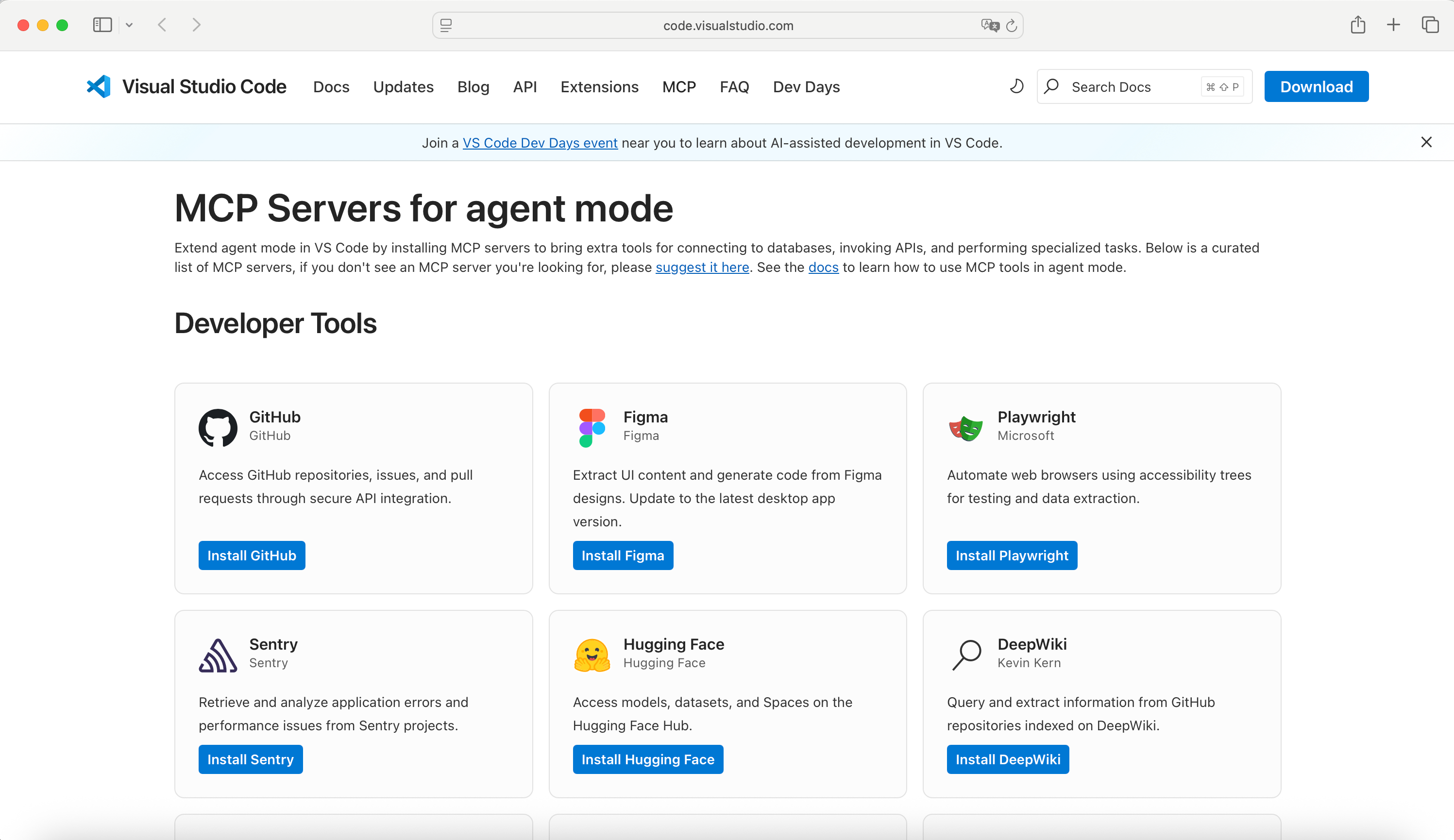
Check the list of available MCP servers for Visual Studio Code and click on Install Playwright.
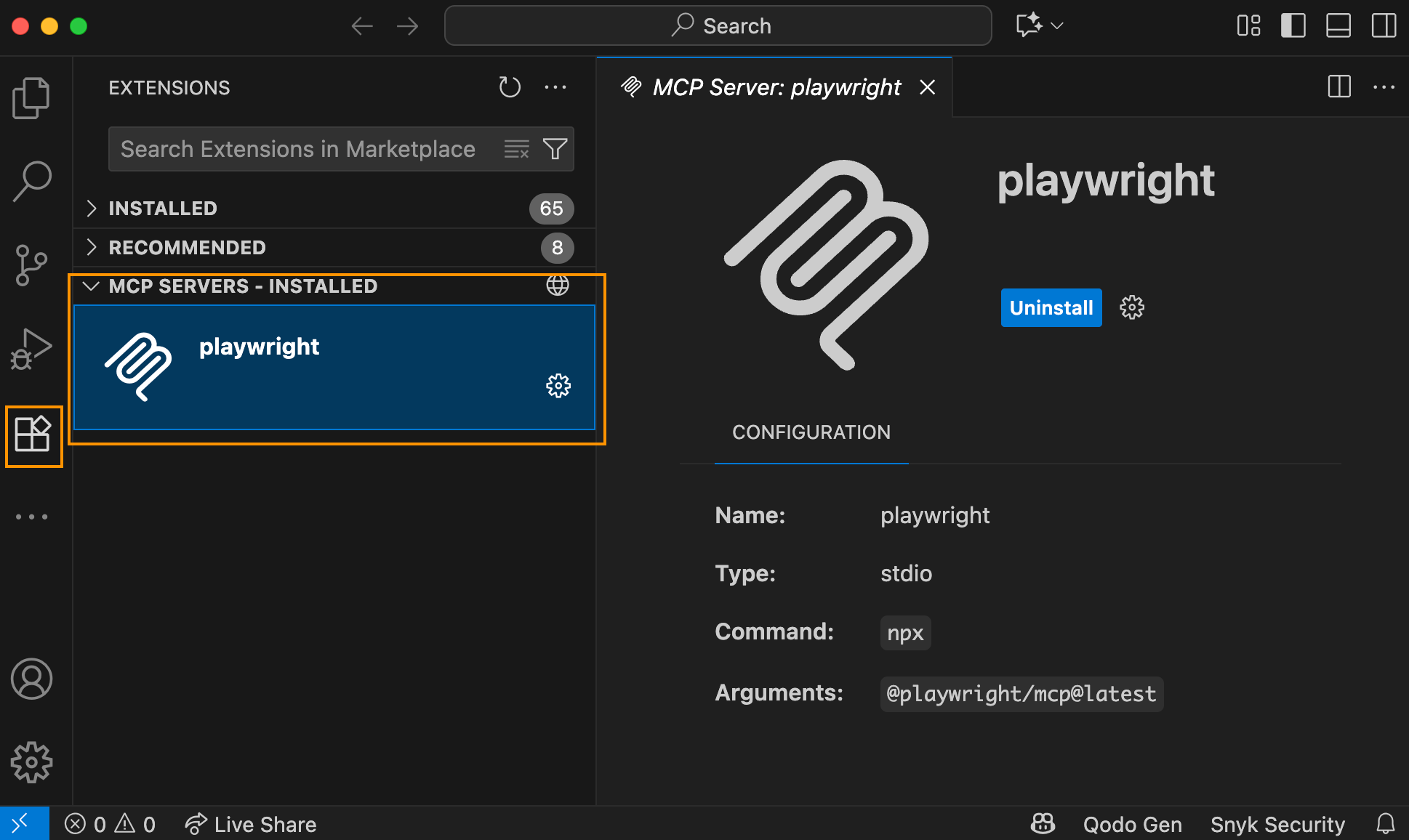
After it is installed, you can see the MCP Servers installed on the Extension Tab > MCP SERVERS section
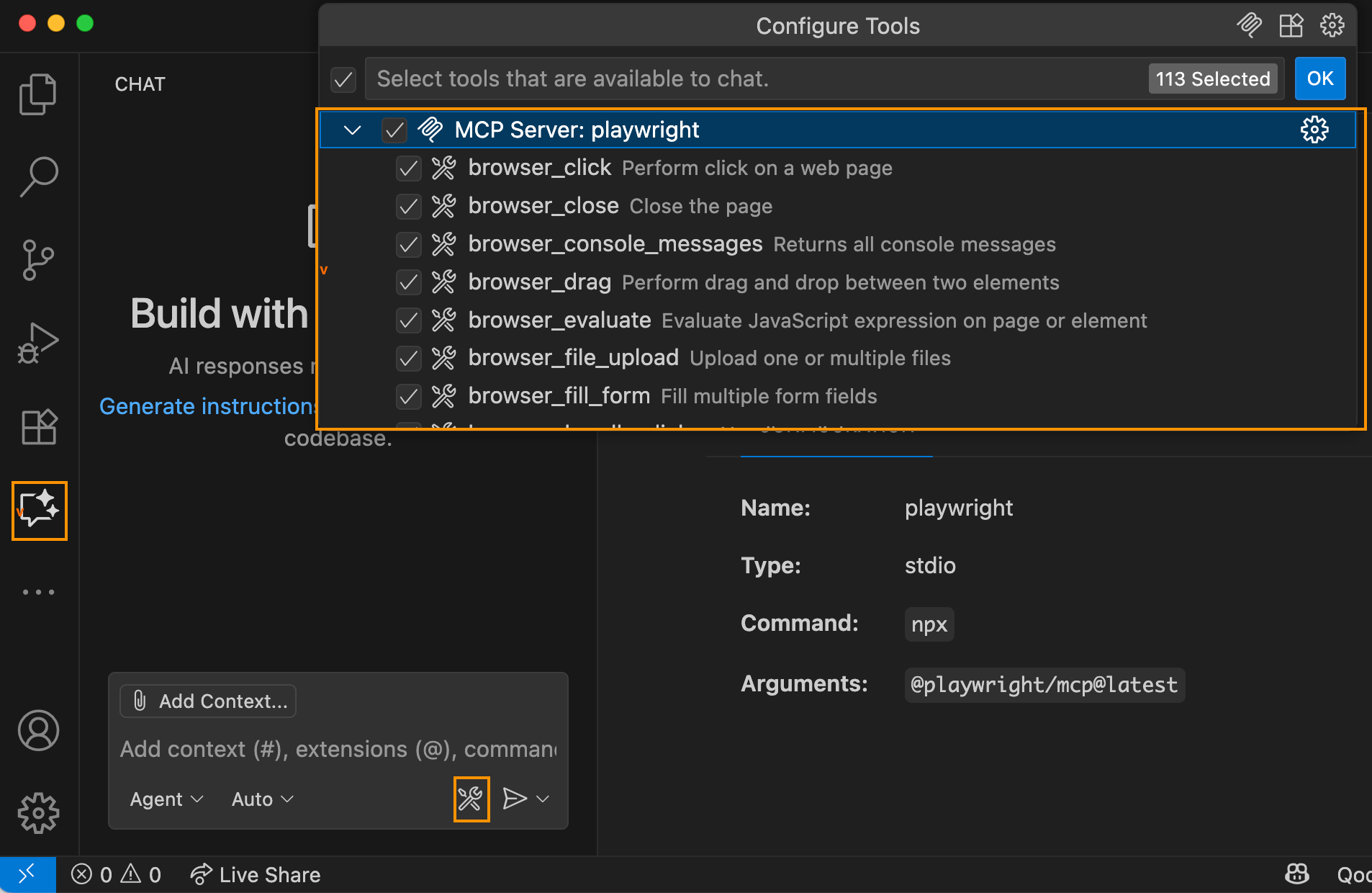
Configure the tools by selecting the GitHub Copilot > chat tool button and enable the desired tools.
How to create copilot instructions
To receive better code suggestions, you need to provide context, such as your coding style, relevant rules, and best practices. For example, I prefer not to use XPath locators, which is one of my rules. If you already have your playwright framework, you can request Copilot to generate the Copilot instructions. Copilot will review your code and generate a file with your code project conventions to use in future requests.
On Visual Studio Code Copilot Chat, go to Settings icon → Generate instructions.
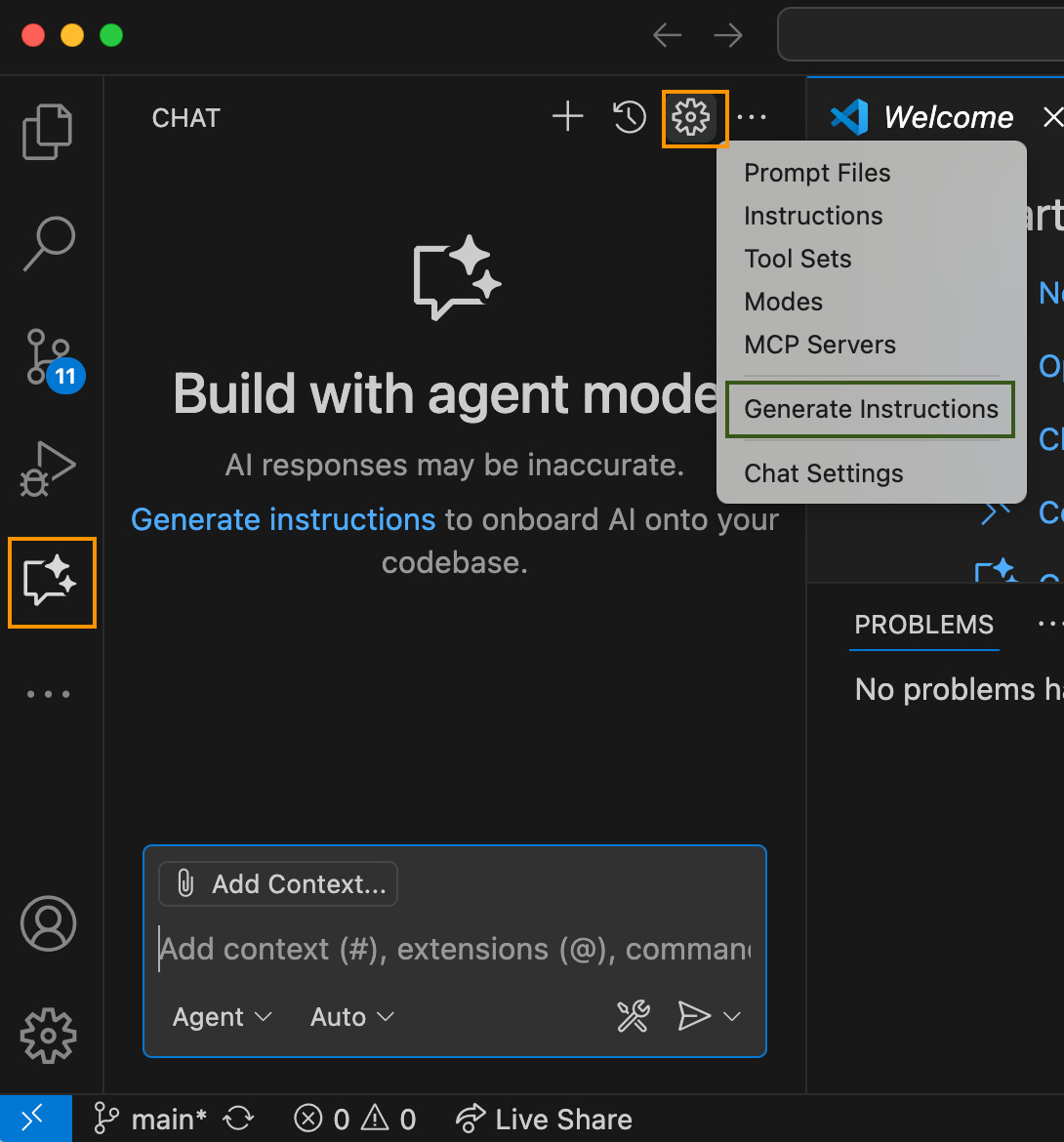
Copilot will start creating the file' copilot_instructions. md' in the' .github' folder. If it is a new project, you can define your own instructions.
You must review and improve the instructions generated. I usually change the prompt to include more details to get better code
I typically include the following format:
Role: In my case, I wrote a software test architect who creates Playwright tests with POM and uses APIs instead of manual steps on the UI for preconditions.
Best Practices: Like SOLID principles, DRY (Don’t Repeat Yourself) is a principle that emphasizes avoiding repetition. Use faker.js to generate random data, avoid hardcoding values, and refrain from storing sensitive information in code.
Playwright Framework: Suggestions like don’t use XPath, add a custom helper, for example, for API, use components in addition to POM
Code Structure: I added my folder structure
Test Case: I added one test case with comments
Checklist: Things that I usually review on PR requests, like no explicit waits.
How to create custom playwright tester mode
Additionally, you can create your own chat mode, for example, a playwright tester to develop tests, and a developer to create better code with your code rules.
On GitHub Copilot chat, click on Agent → Configure modes → + Create new custom chat mode file.
The folder should be in your .github folder → chatmodes and assign a name, for example, playwright_tester.md.
You need to include a description of the tools that the Agent can use, and the model, in my case, for coding, I prefer Claude Sonet 4 included on the paid version
---
description: Testing mode for Playwright tests
tools: ["changes", "codebase", "editFiles", "fetch", "findTestFiles", "problems", "runCommands", "search", "usages"]
model: Claude Sonet 4
---
After you can copy your copilot instructions.
If you return to Copilot Chat, you can now select the playwright tester.
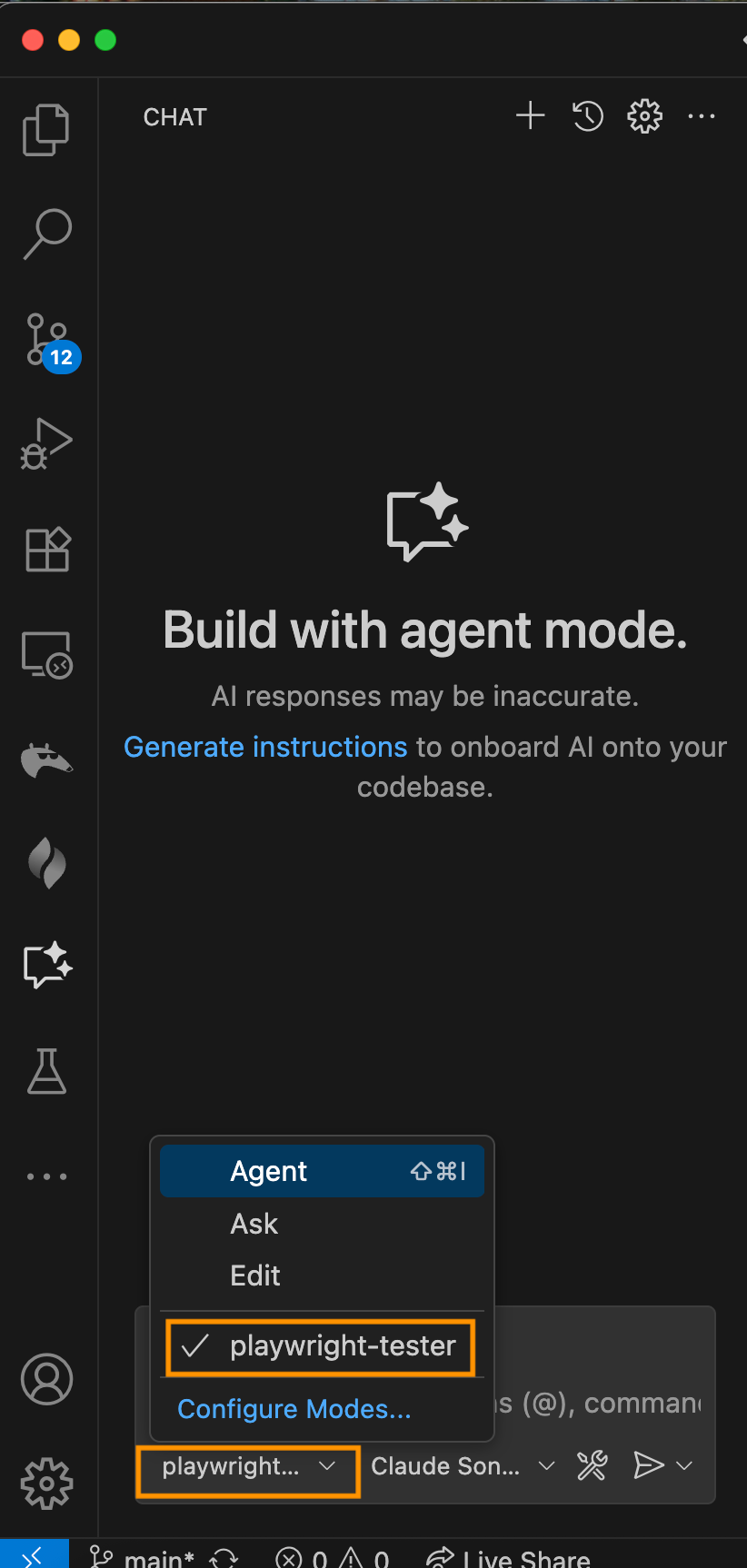
Finally, you can add your manual tests to Copilot to create your automated tests with Playwright
For example, I want to create the steps to log in as a regular user and check that the page loads correctly on my website, to practice testing effizientedemo.azurewebsites.net
You can add the following prompt
Use the existing environment variables, and on the step that starts with $, for example, for $url, the environment variable is EFFIZIENTE_URL. Alternatively, you can wait for me to type in the values.

url: EFFIZIENTE_URL
company: EFFIZIENTE_COMPANY
user: EFFIZIENTE_NORMAL_USER
password: EFFIZIENTE_NORMAL_PASSWORD
username: EFFIZIENTE_NORMAL_USERNAME

And open the browser, execute the manual steps, and create the automated steps, ensuring that the correct page is loaded.
Log in to $url
On the company write $company
On user write $user
On password write $password
Click on login
Assert that shows the $username
Shows a menu with: Accounts Receivable and config
Copilot will start executing the tests and asking permission to execute the commands, and you can request that it create and execute the tests.
With the copilot free version added a wrong locator for getting the user name because the user name on the page contains a user icon. I had to manually fix this issue, as Copilot suggested that a new prompt was needed.
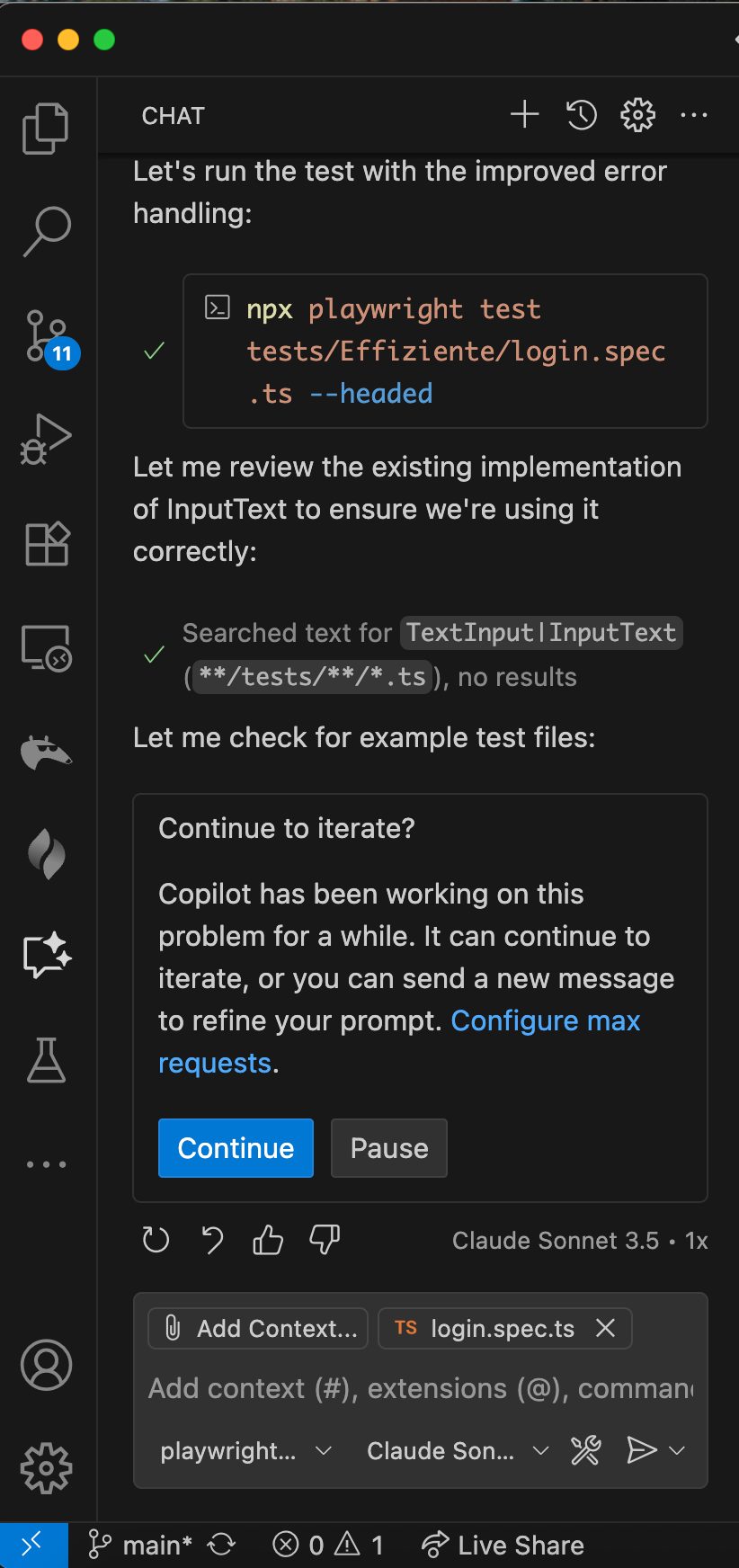
GitHub Copilot suggested pausing the execution to refine the prompt after some attempts to detect and fix the error.
Getting the correct tests requires several attempts, but you can get some code very similar to the code that I wrote before MCP and AI agents mode.
Thank you for reading. Feel free to suggest a new article and enjoy testing!!